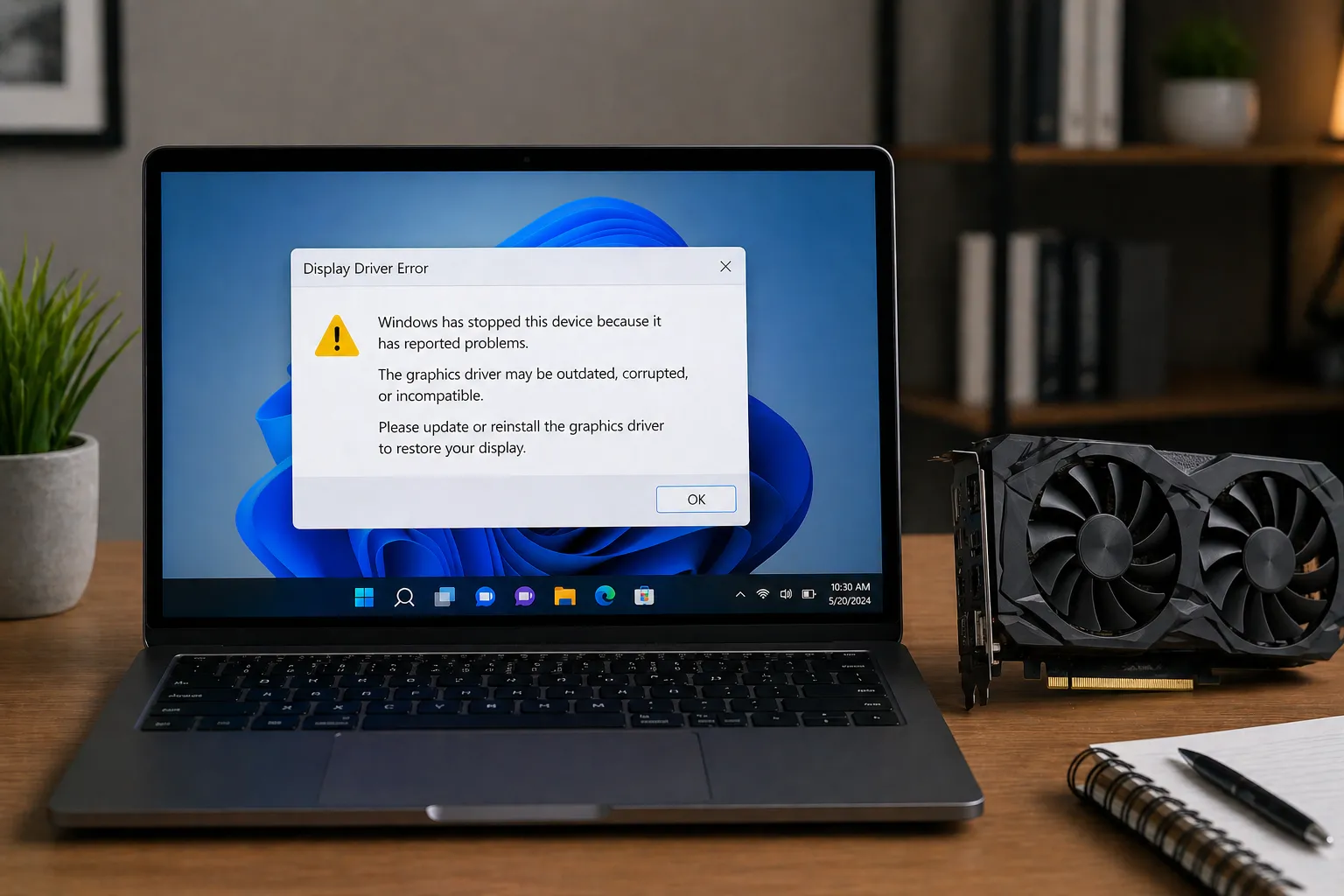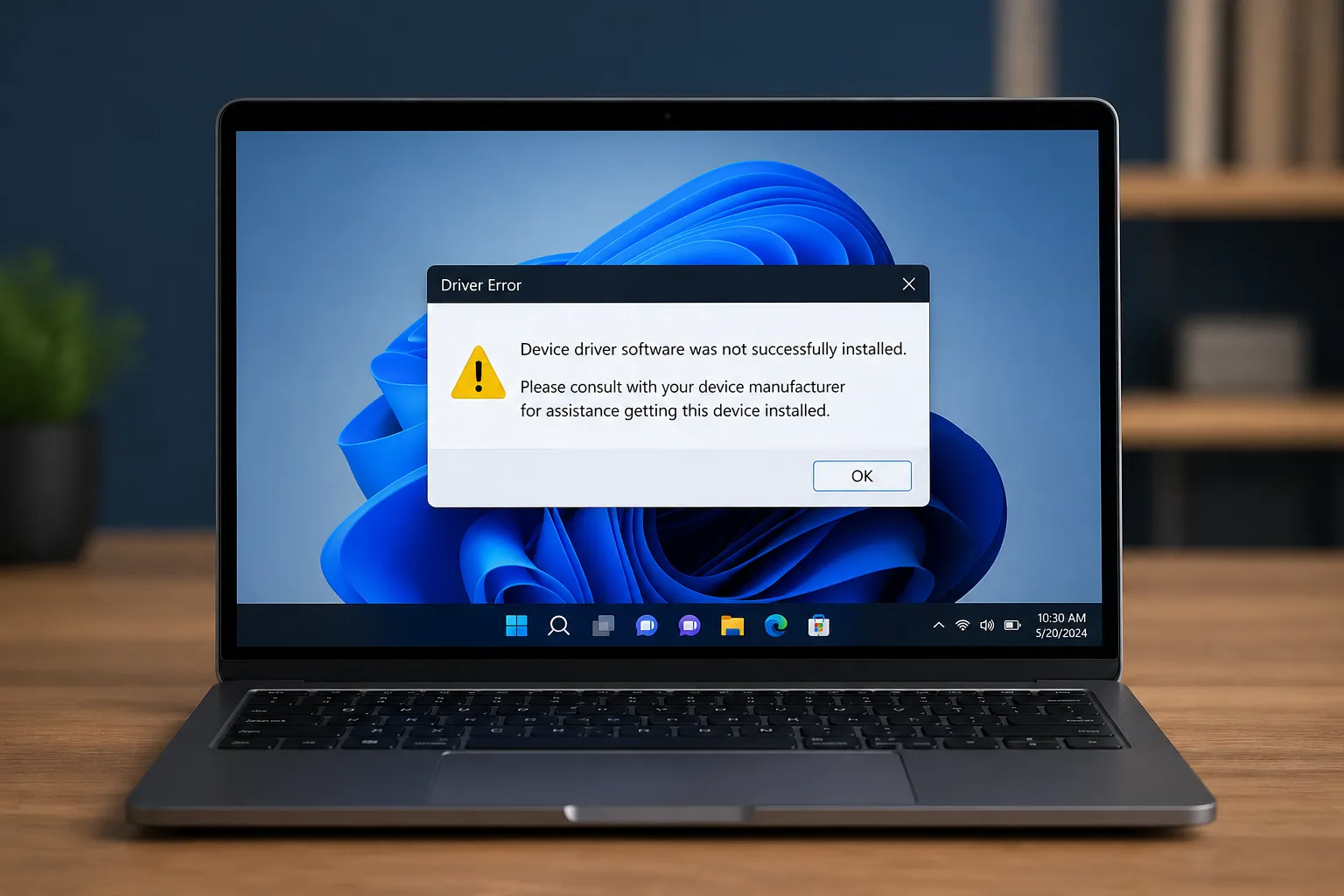
Have you ever connected a new device to your computer only to be met with the frustrating "Driver Not Installed" message? This common Windows error can halt your productivity, but understanding how to navigate the underlying hardware communication layer can help you resolve it like a pro.
Deep Dive: Why Drivers Fail to Install
At its core, a driver is a specialized piece of software that allows your operating system (OS) to communicate with hardware components. When you see a "Driver Not Installed" or "Unknown Device" error in Windows, it means the OS has detected electrical activity on a port or bus but cannot match the device's hardware signature to any known driver package in its local store or via Windows Update.
This failure often stems from three main causes: the device is too new for the current OS version, the driver is not digitally signed (a security requirement in modern Windows), or the device's unique hardware identifier isn't recognized by the standard installer.
Pro Tip: Check Your Connections First
Before diving into deep software troubleshooting, always ensure the device is properly seated in its slot or port. A loose connection can sometimes cause the OS to misread the hardware ID, leading to incorrect driver matching.
Advanced Troubleshooting via Device Manager
The Device Manager is your primary window into the hardware state of your machine. When a driver is missing, the device will typically appear under "Other devices" with a yellow exclamation mark.
The Power of Hardware IDs (VEN/DEV)
Every piece of PC hardware has a unique Vendor ID (VEN) and Device ID (DEV). These are hex codes hardcoded into the silicon. If Windows can't find a driver, you can use these IDs to manually search for the correct software.
- Step 1: Right-click the unknown device in Device Manager and select Properties.
- Step 2: Navigate to the Details tab.
- Step 3: Select Hardware Ids from the Property dropdown menu.
- Step 4: You will see a string like
PCI\VEN_8086&DEV_15D8.... - Step 5: Copy the shortest string containing the VEN and DEV codes and search for them on reputable databases like the PCI ID Repository or the manufacturer's support site.
Manual Driver Extraction and Installation
Sometimes, official installers (.exe or .msi) fail to run because of compatibility issues. In these cases, manual extraction is the most reliable method.
Many driver "installers" are actually compressed archives. Using tools like 7-Zip, you can often right-click the .exe and "Extract" the contents to a folder. Inside, you'll find the raw .inf, .sys, and .cat files.
How to Force-Install a Driver via .inf
- In Device Manager, right-click the target device and choose Update driver.
- Select Browse my computer for drivers.
- Click Let me pick from a list of available drivers on my computer.
- Click the Have Disk... button.
- Browse to the folder where you extracted the driver and select the
.inffile. - Follow the prompts to complete the installation.
Security Warning
Never download drivers from "Driver Updater" third-party sites. These often bundle malware or provide outdated, generic drivers that can cause system instability. Stick to the official manufacturer's website or the Windows Update Catalog.
Common Scenarios and Quick Fixes
If you've identified the hardware and have the driver but it still won't install, consider these factors:
- BIOS/UEFI Settings: Some devices (like NVMe drives or specialized network cards) may need to be enabled in the BIOS before the driver can initialize.
- Chipset Drivers: If your motherboard's chipset drivers aren't installed first, other components (like USB controllers or audio chips) might not be detected correctly.
- Windows Version: Ensure your OS is up to date. Modern drivers often require specific Windows "build" versions to function correctly.
Conclusion
Fixing a "Driver Not Installed" error is a systematic process of identification and manual matching. By moving beyond automatic installers and utilizing the Device Manager's Hardware IDs, you can bypass most software roadblocks and ensure your hardware performs at its peak. Remember that patience and sourcing your software from official channels are key to maintaining a stable and secure system.